
Best lightweight laptops for a two-screen desk and a one-bag trip
The Lenovo Yoga Slim 7i Ultra is the most flexible option here for a USB-C workspace that expands to several screens. We would choose the MacBook Air M5 for a Mac desk with two compatible monitors. For work built around a native HDMI cable and a USB-A receiver, the ThinkPad X1 Carbon travels with fewer small parts.
Quick picks
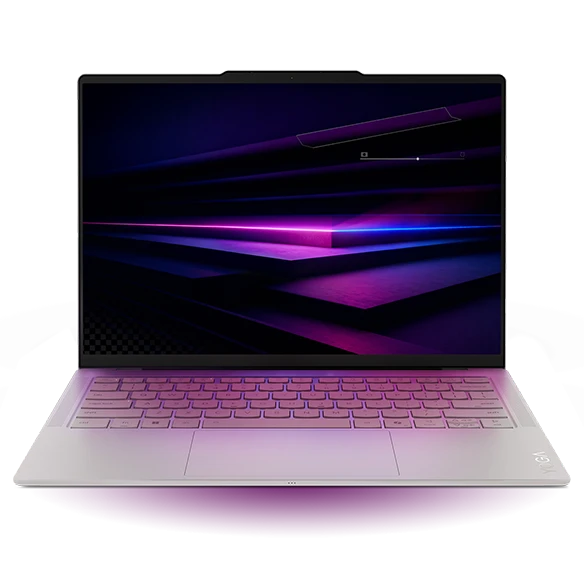
Lenovo Yoga Slim 7i Ultra Gen 11 Aura Edition
Lenovo’s Yoga Slim 7 Ultra 14IPH11 platform reference describes the internal display plus up to three external monitors over Thunderbolt under supported conditions. That gives a two-screen desk room to grow. A desk monitor which supplies enough USB-C power can eliminate one cable; a separate charger can occupy a different Thunderbolt port if required. The light starting chassis makes those desk features practical on a weekly commute.
- Display
- 14 in OLED touch
- Weight
- From 975 g
- Platform
- Intel Core Ultra Series 3
Why choose it
Three Thunderbolt 4 ports give several viable layouts for two screens, power and storage. A compatible powered dock can consolidate them.
Trade-off
Maximum-resolution and maximum-display-count claims are conditional. Lenovo notes an 8K signal uses two display pipes, reducing simultaneous display count.
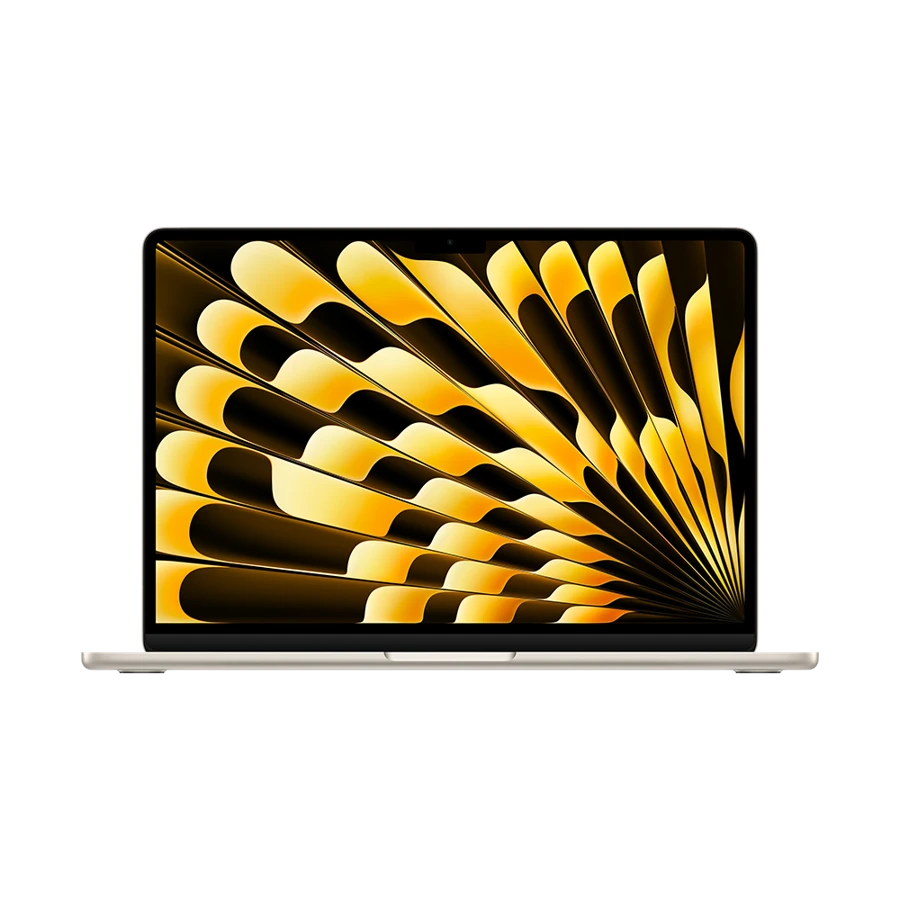
Apple MacBook Air 13-inch (M5)
Apple specifies the 13-inch M5 Air for two external displays while its own panel is in use. Its technical sheet lists a pair up to 6K at 60 Hz or 4K at 144 Hz under supported conditions. That makes this particular Air a stronger candidate for a two-monitor desktop than you might assume from experience with a different Air generation.
- Display
- 13.6 in IPS
- Weight
- 1.23 kg
- Platform
- Apple M5
Why choose it
MagSafe leaves the two Thunderbolt sockets available. Apple also documents two external displays on a single Thunderbolt port with a compatible setup.
Trade-off
A dock’s “dual HDMI” description does not establish extended desktop support on macOS. Look up the exact model, chipset and monitor combination.
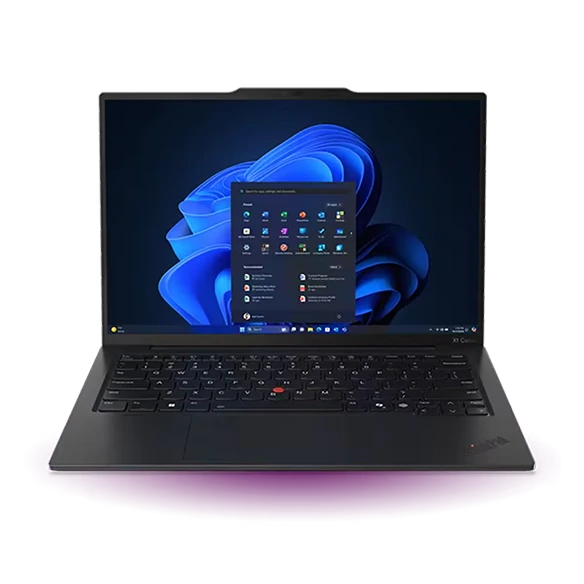
Lenovo ThinkPad X1 Carbon Gen 13 Aura Edition
Put an HDMI screen directly on the ThinkPad and reserve a Thunderbolt port for a second screen or dock. That arrangement also works in an office where a USB-A keyboard and wired presenter remote live on the desk. It avoids chaining a meeting-room adapter onto a second adapter and leaves more of the equipment in place when you travel.
- Display
- 14 in, panel varies
- Weight
- From 986 g
- Platform
- Intel Core Ultra Series 2
Why choose it
Native HDMI and two USB-A ports offer standalone options if you leave the usual dock at home. The generation starts at 986 g.
Trade-off
Display resolution, refresh rate and docking capabilities belong to the complete route. Ask for the spec sheet of the exact Carbon configuration and dock.
Specifications at a glance
| Laptop | Laptop weight | Screen | Platform | Connections |
|---|---|---|---|---|
| Yoga Slim 7i Ultra | From 975 g | 14 in, 2880 × 1800 OLED | Intel Core Ultra Series 3 | 3 × Thunderbolt 4 |
| MacBook Air 13 M5 | 1.23 kg | 13.6 in, 2560 × 1664 IPS | Apple M5 | 2 × Thunderbolt 4, MagSafe 3, 3.5 mm |
| ThinkPad X1 Carbon Gen 13 | From 986 g | 14 in, IPS or OLED by configuration | Intel Core Ultra Series 2 | 2 × Thunderbolt 4, 2 × USB-A, HDMI, 3.5 mm |
Weights exclude the power adapter. A starting weight applies only to the configurations covered by the manufacturer.
Write a three-line desk inventory
Best lightweight laptops for business travel and remote work are the models that reproduce your existing desk without a drawer full of replacement cables. Write down the resolution, desired refresh rate and input on each monitor. Next, identify the socket on the dock which carries video to the host computer. Finally, list what must stay connected after both screens light up: perhaps a headset, webcam, phone and network adapter.
Consider two 4K monitors used for spreadsheets at 60 Hz and a USB-C SSD. Driving both screens is the first requirement. Stable charging while the SSD is active is the second. A hub advertised as 100 W pass-through may reserve some power for itself; read its host-output specification before counting on the headline number.
Design a desk lane and a travel lane
Two short inventories are easier to verify than one elaborate docking diagram. In each case, test the screen as an extended desktop, then reconnect after waking the laptop.
| Setup | Example connection strategy | Acceptance test |
|---|---|---|
| Yoga and two modern screens | Thunderbolt dock, or compatible separate video leads | Drag a different window to each screen and confirm the intended refresh rates |
| Air M5 and two external screens | Supported Thunderbolt arrangement plus MagSafe if needed | Leave the lid open and make sure the built-in screen remains usable |
| Carbon and an HDMI office panel | Native HDMI for the panel, Thunderbolt for the desk dock | Reconnect the conferencing headset after switching rooms |
| One hotel screen for any laptop | Use the actual screen input or work on the internal display | Open the presentation offline and check its aspect ratio |
Travel with the minimum working set
Leave the expensive multi-monitor dock at the main desk when a trip only calls for one external screen. Take one verified display adapter or cable and one way to power the laptop independently. Keep a photo of the desk wiring on the phone. It saves trial and error when returning to two monitors after a week away.
Users who rely on working privately in public should also test the built-in screen at their preferred seating distance. Even a perfect desk configuration will not help if a confidential spreadsheet is unreadable on the laptop at a train table.
How we chose these laptops
We compared published display counts and the native ports on the three laptops, then mapped them to real connector combinations. Resolution ceilings are the manufacturer’s. We do not infer that any particular third-party dock supports every listed mode. Machine weight excludes the desk dock and travel charger.
Buying questions
Will a dual-screen USB-C hub run two extended desktops on a Mac?
Check the hub maker’s macOS support, host connection and exact M5 Air model. Two physical display outputs do not guarantee two independent desktops.
How many screens will I actually use on the road?
If the trip has one client display, plan for one. It is usually enough to bring a short tested video path rather than transporting the complete desk dock.
What should I do when the monitors mirror?
Check the display settings first. Then test one screen at a time directly on the laptop and verify the dock’s extended-display support for your operating system.